





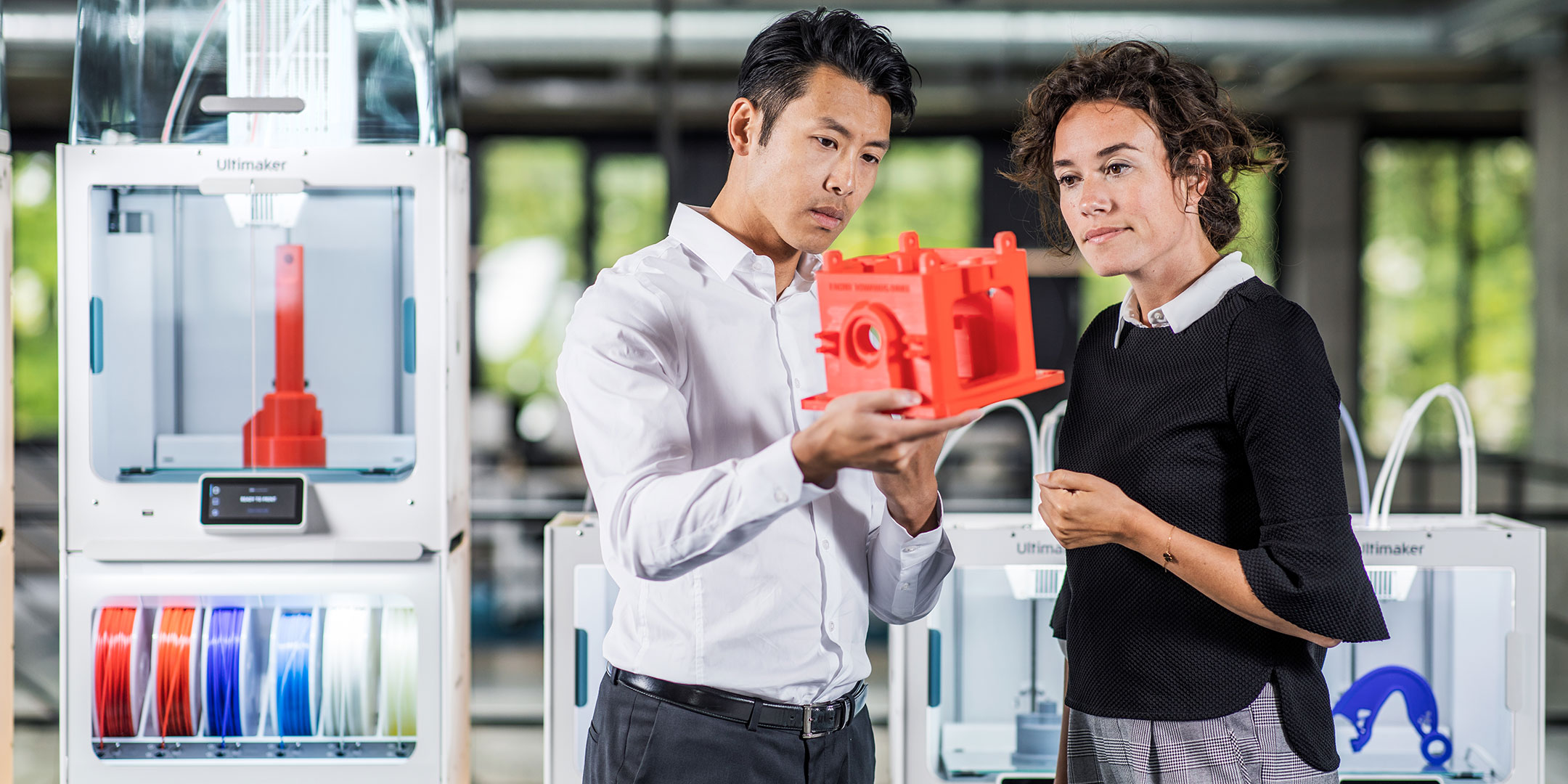
The Ultimaker Pro Bundle features the Ultimaker S5, plus its Air Manager and Material Station


High-performance and certified materials
Over 300 materials to choose from.
From polymers to composites to metals.
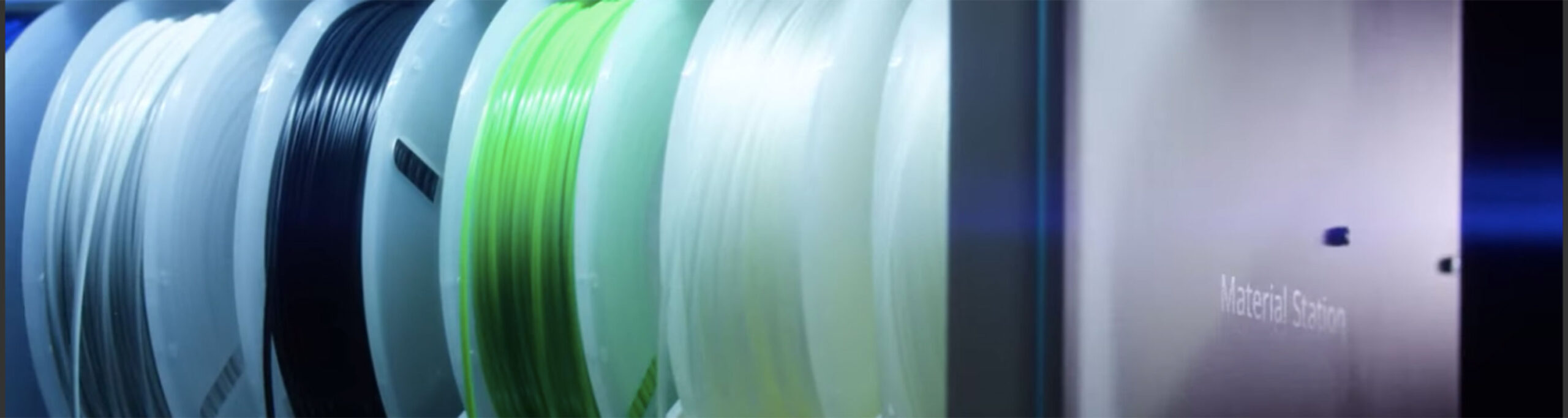
The Ultimaker S5 Material Station marks an important contribution to a ‘no-hassle’ office solution. As part of the Ultimaker S5 Pro Bundle, it features easy front loading for up to six spools of filament, end-of-filament detection, NFC recognition with compatible materials, and automatic material switching. But how best to configure your Material Station for your use case? Read on for a few tips.
Model-making, prototyping, production runs often require only one print color. For these cases – and for large, time-consuming prints – the Material Station is best loaded with six spools of the same color of filament, allowing you to greatly limit time spent replacing print material. Just start printing and get on with your day.
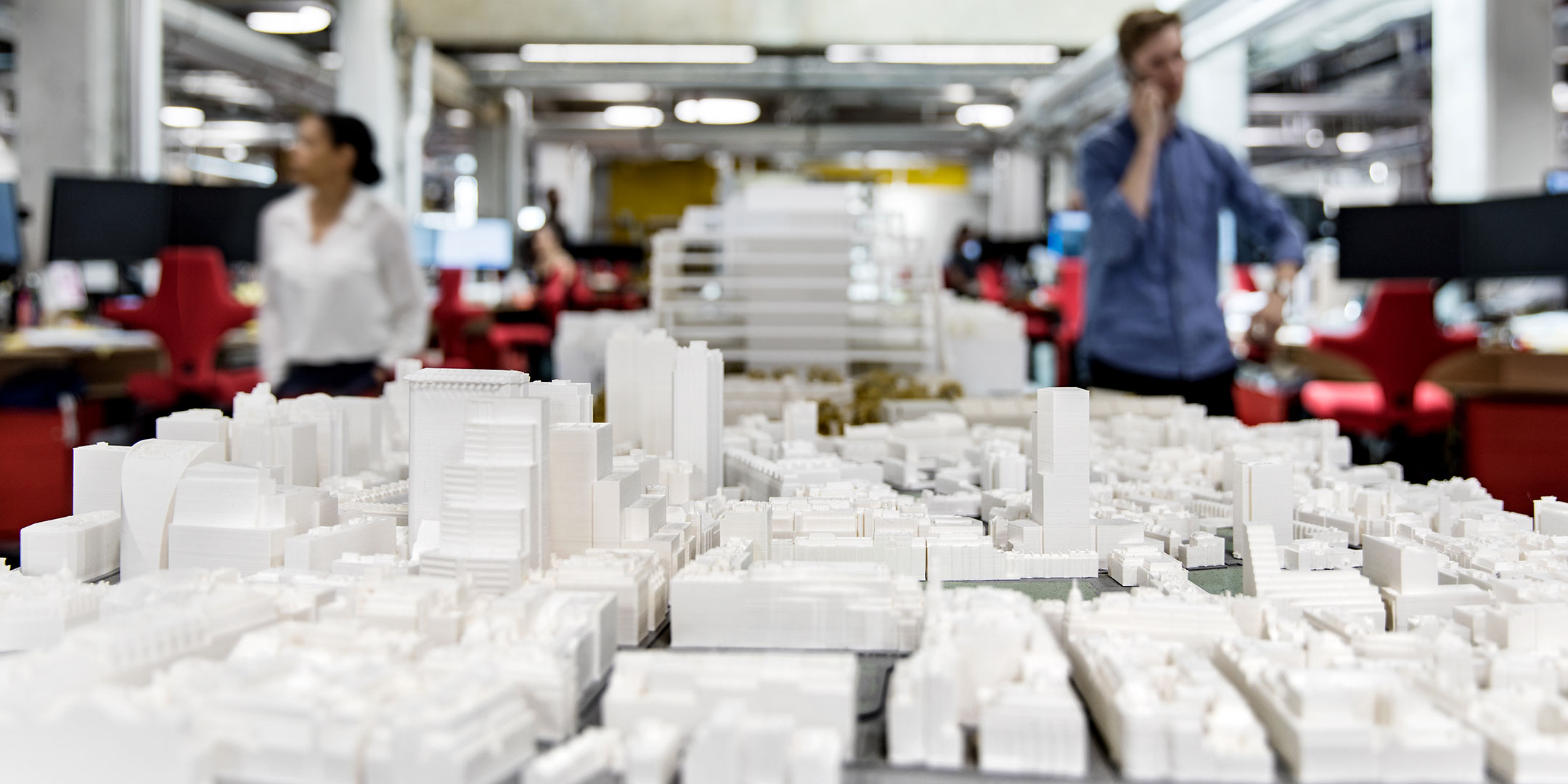
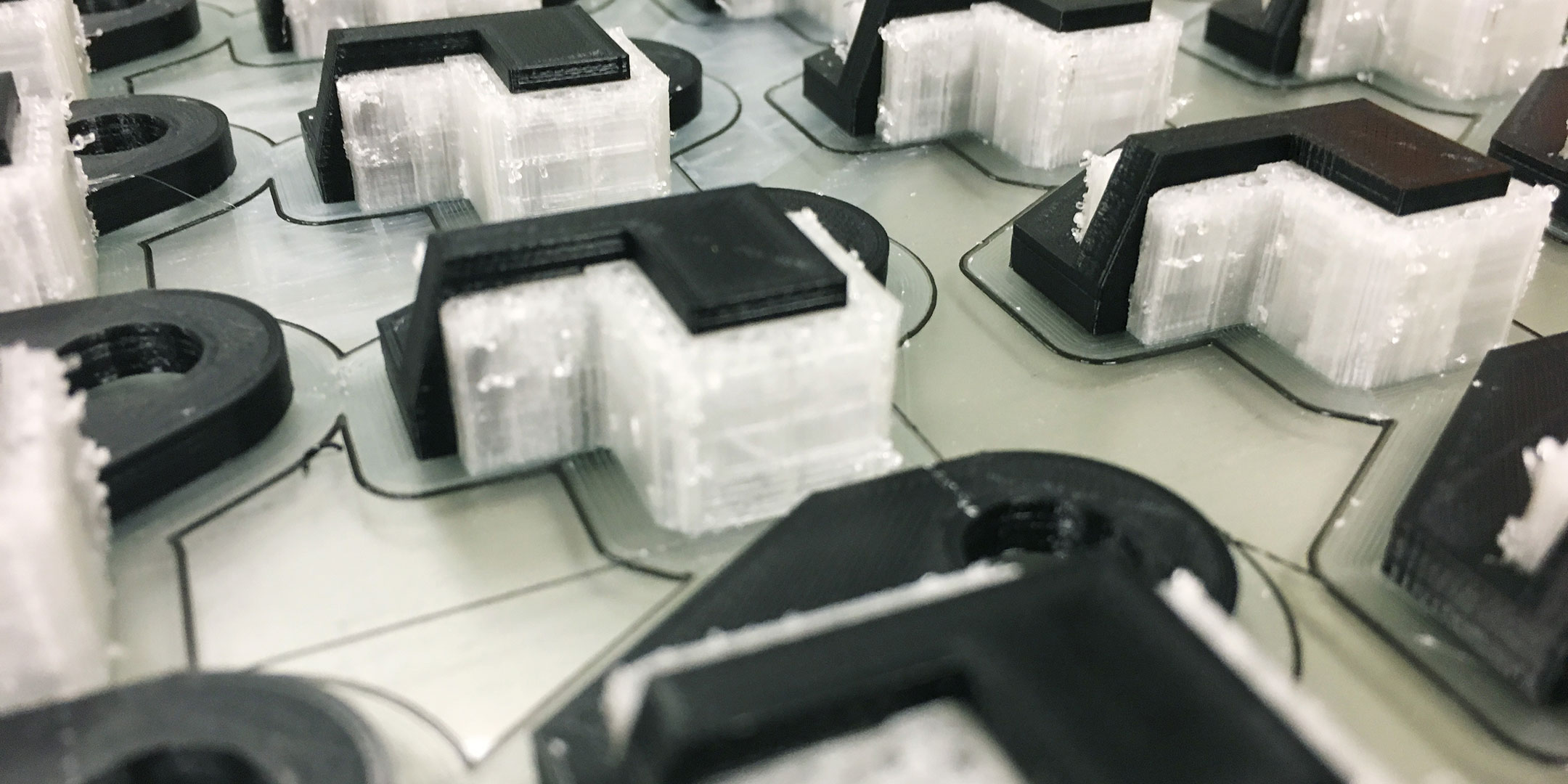
Complex prints often require support material to prevent overhangs from collapsing. By loading the Material Station with three spools of regular material and three spools of support materials like Breakaway or PVA – or a four-two division, depending on the amount of each type of material needed – you will ensure that your prints come out stable and ready for action. A fully enclosed chamber keeps relative humidity below 40%, meaning PVA, which degrades when not properly stored, can be kept for much longer periods of time, eliminating the potential for wastage.
Other materials, such as glass fiber-reinforced nylon, will also degrade if not kept at proper humidity. The Material Station provides a suitable environment for these materials and many others available within the Ultimaker Marketplace.
In a fast-paced environment such as a manufacturing line, the use of multiple tools, jigs, and fixtures is all but required. To keep things moving – and to maintain an appropriate level of safety – color-coding is an excellent option. With the Material Station, this is easily done.
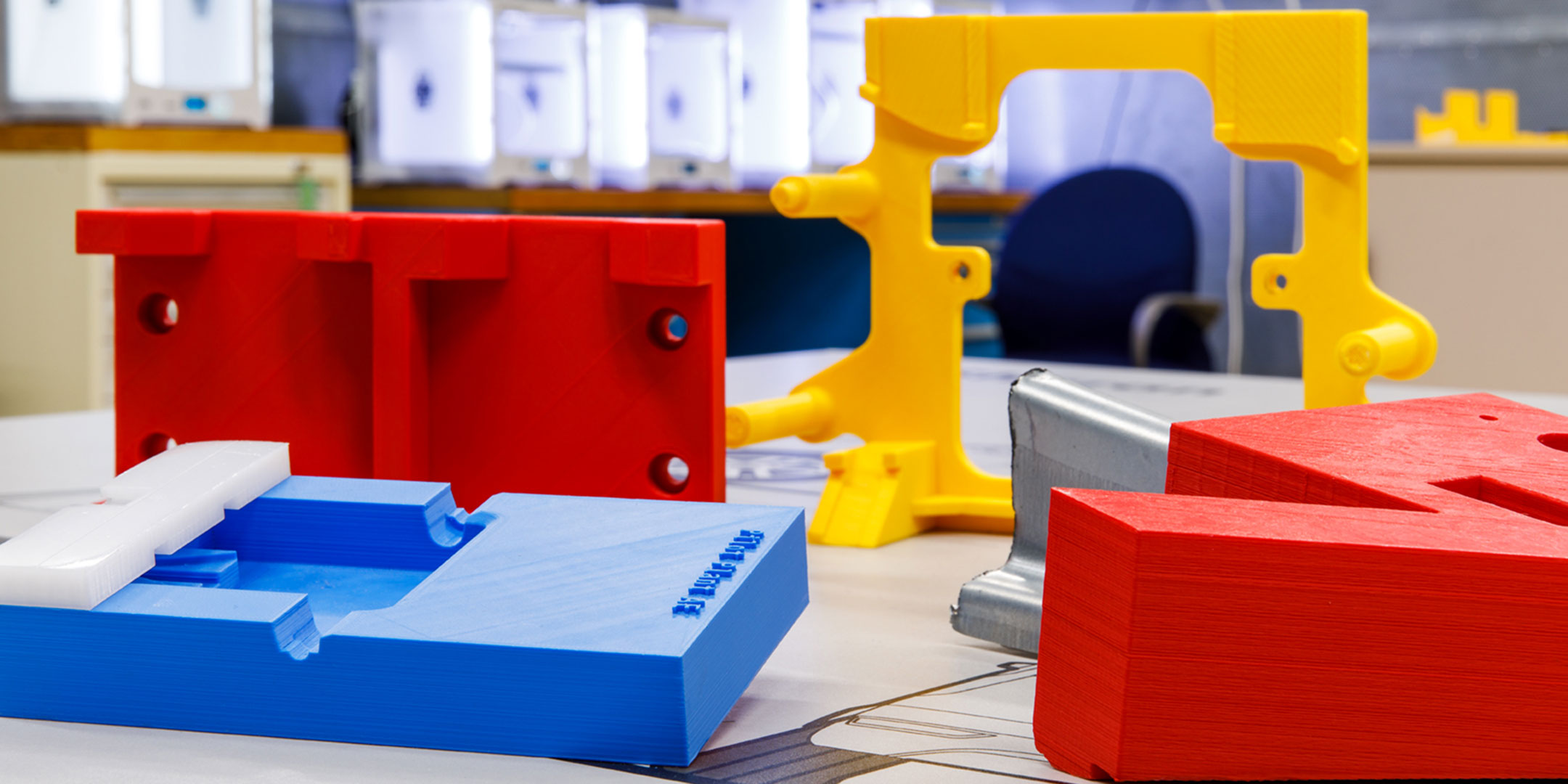
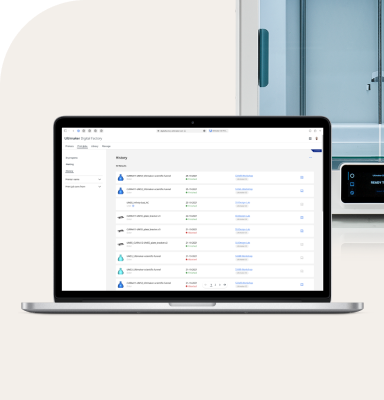
The Ultimaker S5 can print with up to two colors per print. Coupled with Ultimaker Digital Factory, however, you can queue print jobs. So long as your prints fit the build plate – or you are present to manually remove them after each print is finished – you will be able to create prints using any combination of six filament colors.
You can also use multiple colors to create parts with functional wear elements. These prints require two colors, with one wearing away as it is used – think gears, close-fitting tools, or robotic grippers. When the secondary color begins to show, you will know the part needs to be replaced.
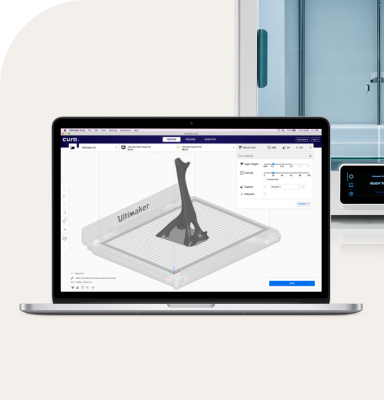
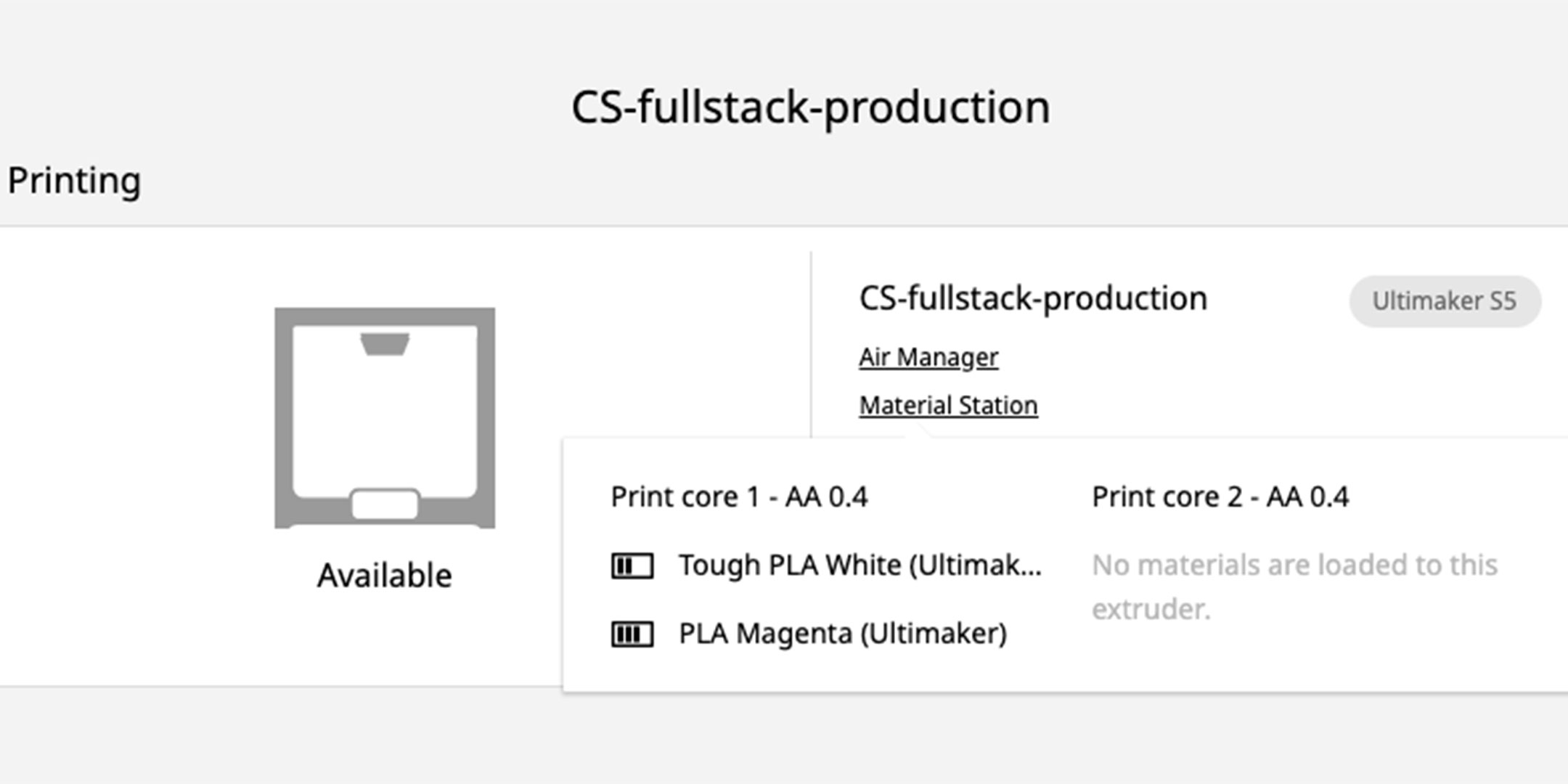
Material configurations are one thing. The confidence that comes with a clear overview of all your prints is another. That’s where Ultimaker software steps in. When connected with a Material Station, the Ultimaker S5 will show all available material combinations in the configuration selector in Ultimaker Cura.
The touchscreen of the Ultimaker S5 will also show all materials which have been loaded into the bays – as well as what extruder each material is loaded to. NFC-compatible materials will be automatically recognized and displayed on the touchscreen.
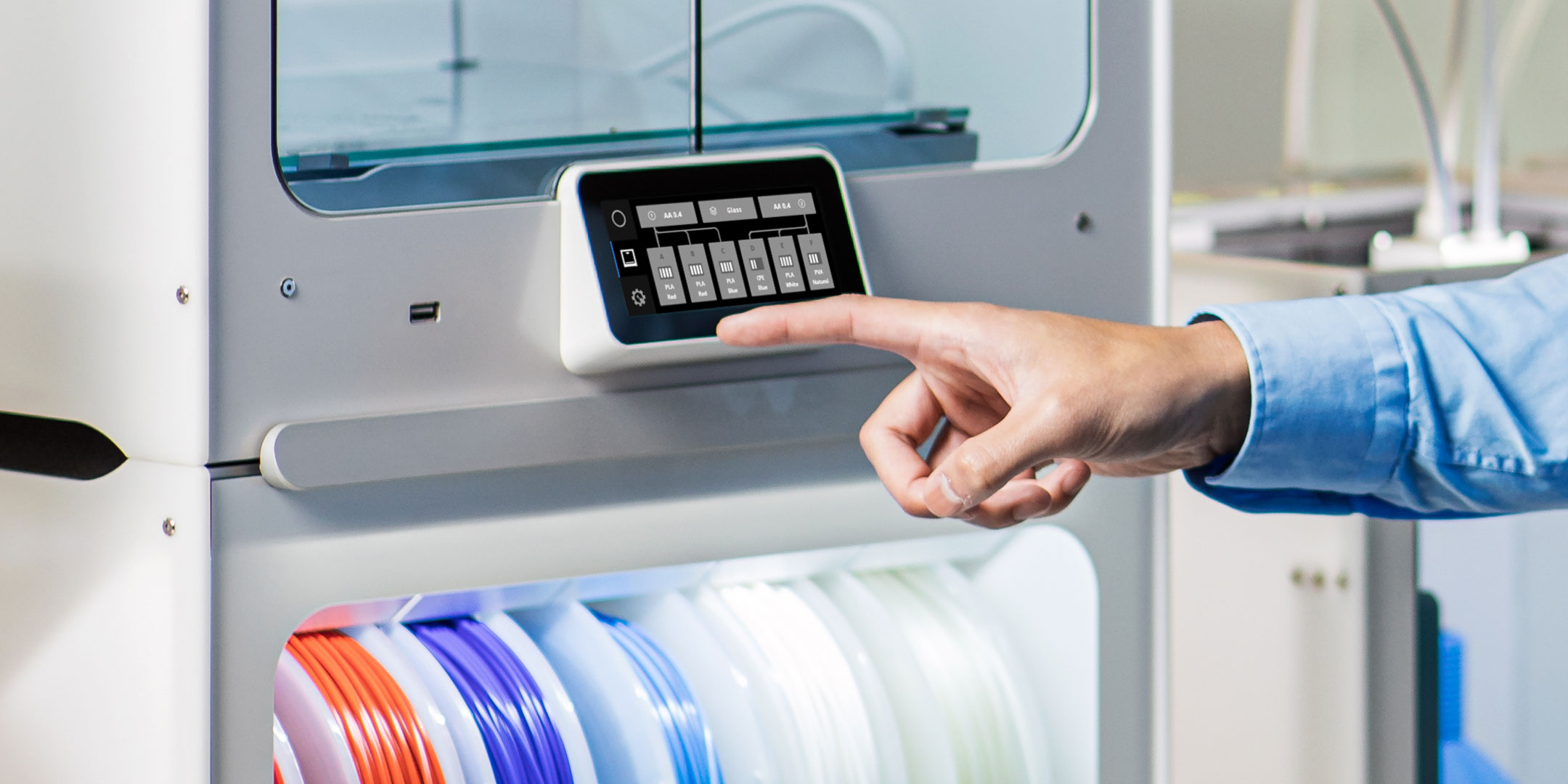
Going further, battery-style indicators in Ultimaker Cloud and Ultimaker Connect show material amount status, so you know which materials to load next. These indicators are also reflected on the interface of the Ultimaker S5.
Ready to revolutionize your workflow and unlock 24/7 3D printing? The Ultimaker S5 Pro Bundle, which features the Ultimaker S5, plus its Material Station and Air Manager, is now shipping.